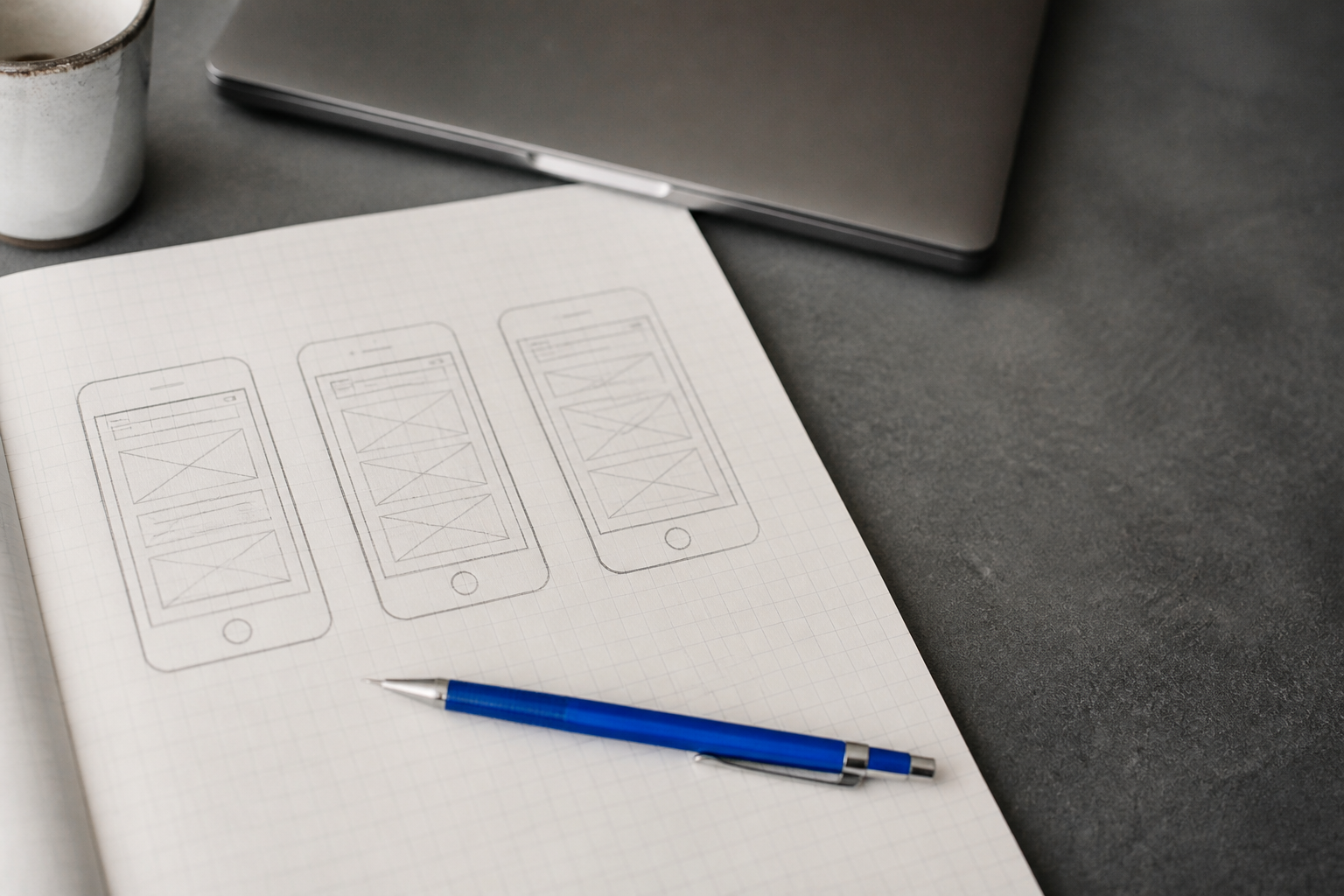
This is for founders, product managers, and marketers who need something people can click this week. Not a slide, not a wireframe mockup — a prototype where buttons do things and screens respond.
You do not need to write code. You describe what each screen should do and what data it shows, then refine it against a live preview until the flow works end to end. The goal is a working demo of one path through your product, not a finished app.
Below is the afternoon-sized process: choose one flow, spec it, build it in small pieces, and get the code out when you're done.
What you'll need
- A clear idea of the single flow you want to prove.
- A list of the screens in that flow and the data each one shows.
- A tool that builds a clickable app from a written brief and shows a live preview. Code Studio is one; the steps work in any similar environment.
- A GitHub account if you plan to hand the result to an engineer later (optional).
Step 1: Pick one flow to prove
Choose a single path through your product and leave everything else out. Good candidates are sign-up, checkout, or a calculator — flows with a clear start, middle, and end.
This matters because a prototype that tries to show the whole app shows nothing well. One flow built properly is more convincing than ten flows half-built, and it fits in an afternoon.
Write the flow as a one-line sentence with its steps.
Flow: New user signs up and sees their empty dashboard.
Steps: Landing → Sign-up form → Confirmation → Empty dashboard
If someone asks about billing, settings, or admin, note it on a "later" list and move on.
Step 2: Write a short build spec
List the screens, the data each screen shows, and the empty and error states. This is the instruction set you'll build from, and it keeps you from inventing details mid-build.
A spec for a three-screen flow fits on one page:
Screen 1 — Sign-up form
  Shows: email field, password field, "Create account" button
  Error: invalid email → "Enter a valid email address"
  Error: password under 8 chars → "Use at least 8 characters"

Screen 2 — Confirmation
  Shows: "Account created" message, "Go to dashboard" button

Screen 3 — Dashboard
  Shows (empty state): "No projects yet", "Create project" button
  Shows (with data): list of project cards (name, date, status)
The empty and error states are the part people skip. They're also where a prototype feels real — a blank screen with a helpful message beats a screen that assumes data is always there.
Step 3: Build the first screen and check the preview
Start with one request for the first screen only. Describe the screen and its fields in plain language, then look at the live preview before adding anything else.
Building one screen at a time means you can see exactly what each request changed. If you ask for three screens at once and something looks wrong, you won't know which instruction caused it.
A first request looks like this:
Build a sign-up screen with an email field, a password field,
and a "Create account" button. Center it on a white page.
Show it on phone and desktop.
Check the preview on both phone and desktop widths. Buttons should be tappable; fields should accept text. If the layout breaks on mobile, fix that now before moving on.
Step 4: Add the rest of the flow in small requests
Add one screen or one behavior per request. After each, check the preview and click through what you've built so far.
Small requests keep the build legible and make problems easy to trace. A reasonable sequence for the sign-up flow:
- "When I click Create account, show the confirmation screen."
- "Add a 'Go to dashboard' button that opens the dashboard screen."
- "On the dashboard, show the empty state: 'No projects yet' and a 'Create project' button."
- "If the email field is empty or invalid, show 'Enter a valid email address' under the field."
Click the whole flow after each addition — form to confirmation to dashboard. A prototype earns its keep when someone else can click through it without you narrating.
Step 5: Handle a missing package or a broken preview
When a request needs something extra — a date picker, a chart, a calendar — the tool may need to add a package. If it reports a missing package, approve the add or ask for a simpler built-in version instead.
If the preview goes blank or throws an error after a change, do this:
- Read the error message in the preview; it usually names the file or line.
- Undo or revert to the last version that worked. Saved versions make this quick.
- Re-request the change in a smaller step. "Add a date picker to the time field" is easier to get right than "rebuild the booking screen with a calendar."
Step 6: Polish the states that make it feel real
Go back through the spec and confirm every empty and error state exists. These are what make a prototype demo well.
Check each of these:
Small wording inconsistencies read as bugs to the person clicking. Fix them now while the flow is fresh.
Step 7: Get the code out
When the flow works, export it. There are two common ways:
- ZIP export — downloads all the files. Good for archiving, sharing a snapshot, or handing to someone who'll open it locally.
- Pull request to GitHub — pushes the code to a repository as a PR. Good when an engineer will review and continue the work in their own setup.
Choose GitHub if a developer is picking this up next; choose ZIP if you just need a copy. Either way, you now have real files, not screenshots.
Where a prototype stops
A clickable prototype proves the flow. It is not production software. Stop before you try to build:
- Real authentication — storing passwords and managing sessions safely needs real backend work.
- Payments — taking money requires a payment provider and the rules that come with it.
- A security review — anything handling personal or financial data should be reviewed by a qualified engineer before real users touch it.
The value of the prototype is the head start it gives. A developer who receives working screens, a clear flow, and your spec can skip the guesswork about what you want and focus on building it correctly. When the work outgrows a prototype, that's the point to bring in an engineer — with your demo as the brief.
Mistakes to avoid
- Building the whole app. An afternoon buys one flow. More than that and nothing gets finished.
- Skipping empty and error states. A prototype with only the happy path falls apart the moment someone clicks wrong.
- Batching requests. Five changes in one request means you can't tell which one broke the preview.
- Treating it as production. Don't add real sign-in or payments to a prototype. Prove the flow; let an engineer build the rest.
- Not clicking it yourself. If you haven't clicked the full path on a phone, it isn't finished.
Questions people ask
Can I really build an app prototype without coding?
Yes, for a prototype. You describe each screen and behavior in plain language and refine it against a live preview. You're defining what the app does, not writing the code by hand. Production features like secure sign-in and payments still need an engineer, but a clickable demo of one flow is well within reach in an afternoon.
How long does a clickable prototype actually take?
A single flow of three to five screens is an afternoon of work: roughly one pass to spec it, then a round of small build-and-check requests per screen. It takes longer if you keep adding screens, so hold the line on one flow. Polishing empty and error states is where the last hour usually goes.
What's the difference between a wireframe and a clickable prototype?
A wireframe is a static picture of a screen. A clickable prototype responds: buttons move you between screens, forms show errors, empty states appear when there's no data. The difference matters when you're testing a flow with real people — they can use a prototype, but they can only point at a wireframe.
How do I hand a prototype to a developer?
Push it to GitHub as a pull request, or export a ZIP and share it along with your spec. The spec tells the engineer what each screen should do and which states exist; the code shows the layout you already approved. Together they remove most of the back-and-forth about intent.
Next step
Pick one flow and write its three-screen spec right now — screens, data, empty and error states. That one page is the hardest part, and it's the thing you can do before opening any tool.
When you're ready to build, Code Studio builds multi-file apps from a written brief, shows a live preview on phone and desktop, and saves every version. You can tap anything in the preview to change it, share a link for comments, export a ZIP, or push to GitHub when an engineer takes over. Liam, the software engineer there, handles the build so you can stay focused on the flow.